Learn how to speed up a slow Computer without third-party software.
Clean temporary files, manage startup apps, free up system resources, and improve performance.
Disclosure: As an Amazon Associate, I earn from qualifying purchases.
Disclaimer: Some of the links in this article are affiliate links. If you click on the link and purchase the item, I may earn a commission at no extra cost to you.
If your computer feels much slower than it used to be and freezes when you open programs, try several simple steps before buying new hardware or installing a computer-cleaning program.
Windows creates temporary files, cached data, and other unnecessary files during normal use. Too much unnecessary and unused software can also slow down your hardware.
This guide shows you several simple ways to clean up your Windows PC and reduce unnecessary background activity, without installing third-party cleaning software.
Important: These steps can help when unnecessary files or startup programs are contributing to slow performance. They will not fix every cause of a slow PC.
If your computer has an aging hard drive, insufficient RAM, overheating, hardware problems, or malware, you may need a different solution.
Steps to Speed Up a Slow Computer
Step 1: Use Disk Cleanup to Remove Unnecessary Files
Windows includes a built-in tool called Disk Cleanup that can remove various types of temporary and unnecessary files.
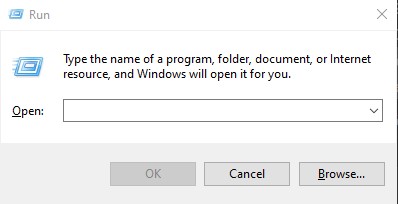
Open the Run dialog again by pressing:
Windows + R
or
You can also right-click the Start button and select Run.
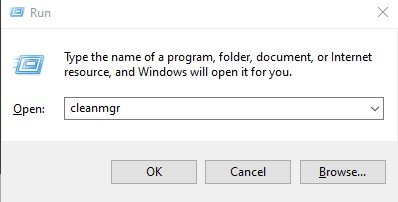
In the dialogue box Type:
cleanmgr
Then press Enter or click OK.
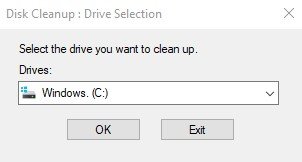
The Disk Cleanup tool will open and may ask you to choose a drive. Usually, you will want to select your Windows drive, which is commonly C:.
Press OK.
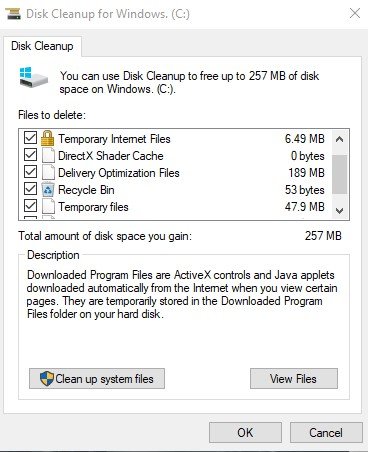
Windows will calculate how much space can be freed.
You may see options such as:
Temporary Internet Files
Temporary Files
Thumbnails
Recycle Bin
Delivery Optimization Files
Other temporary Windows files
Review the available options and select the files you want to remove. It is suggested to tick all the files in the tick box.
Be careful with the Recycle Bin
If you have accidentally deleted something that you still need, check the Recycle Bin before emptying it.
Once you are satisfied with your selections, click OK.
A Disk Cleanup Box will appear asking, “Are you sure you want to permanently delete these files?”
Press Delete Files to confirm.
Step 2: Clean the Temporary Files Folder
Windows and installed applications create temporary files while they are running.
Many of these files are no longer needed after the associated task has finished.
To open the temporary files folder:
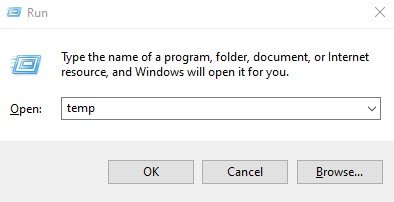
Press Windows + R.
Type:
temp
Then press Enter.
A folder containing temporary files will open.
Press:
Ctrl + A
This selects the files and folders.
Then press Delete.
Windows may ask for permission to delete some files.
You may also see a message saying that certain files cannot be deleted because they are currently being used.
That is normal.
If Windows gives you the option to skip those files, select Skip and continue.
Do not worry if not every file can be deleted. Some temporary files are being used by Windows or another application and therefore cannot be removed at that moment.
Step 3: Clean the Windows Temporary Folder
There is another temporary folder that you can check.
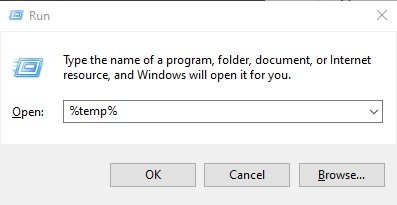
Press:
Windows + R
Type:
%temp%
Then press Enter.
When the folder opens, press Ctrl + A to select the contents, and then press Delete.
Again, some files may not be deleted because they are currently being used.
If that happens, simply skip those files.
The goal is not to force Windows to delete every temporary file. It is simply to remove files that are no longer needed.
Step 4: Close Programs That Are Using Too Many Resources
Sometimes the computer is slow simply because too many programs are running at the same time.
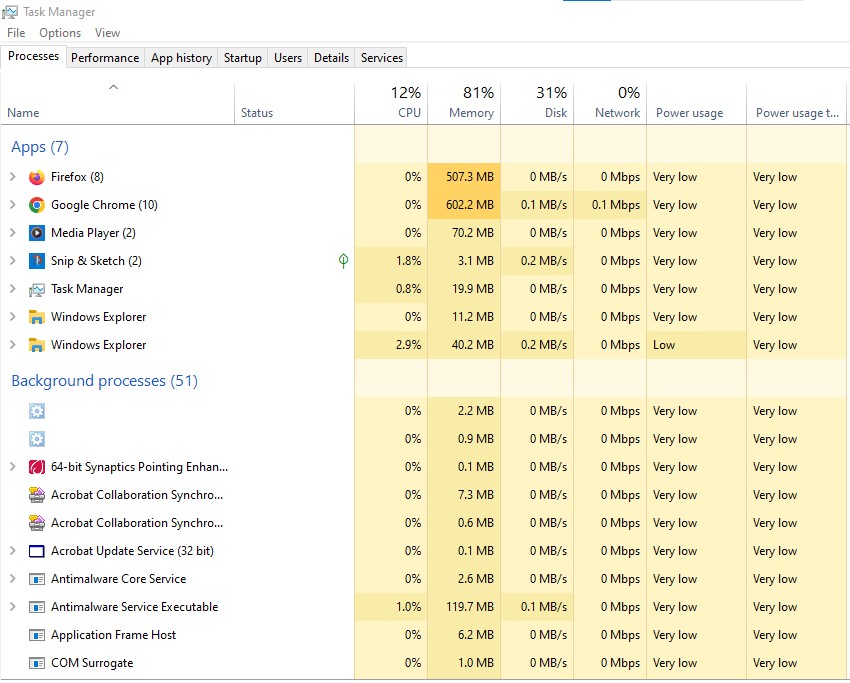
Task Manager can help you find programs that are consuming a large amount of:
CPU
Memory
Disk
Network resources
You can control these programs through Task Manager.
Right-click the Start button and select Task Manager.
You can also press:
Ctrl + Shift + Esc
Look at the Processes section.
You can click the CPU or Memory column to sort programs according to how much of that resource they are using.
If an application is consuming a lot of resources and you are finished using it, close the application normally.
If an application has stopped responding, you can select it in Task Manager and choose End task.
Important: Do not end random Windows processes just because they are using resources. Ending the wrong system process can cause problems or make Windows unstable.
Step 5: Reduce Unnecessary Startup Programs
If your computer takes a long time to start, too many programs launching automatically could be part of the problem.
Many applications add themselves to the Windows startup list. Some of them may continue running in the background even when you are not using them.
You can control these programs through Task Manager.
Right-click the Start button and select Task Manager.
You can also press:
Ctrl + Shift + Esc
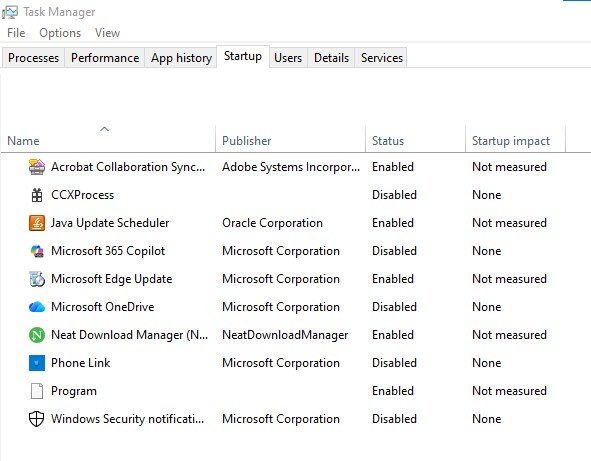
In Task Manager, look for the Startup apps section.
You will see programs that can start automatically when Windows boots.
Look at the Startup impact column as well. Programs marked with high startup impact can contribute more to the time Windows takes to start.
Which Startup Programs Should You Disable?
This is where you need to be careful.
You do not need every application to start automatically.
For example, if you have a program that you use only occasionally, you may be able to disable its automatic startup. You can still open the program manually whenever you need it.
To disable a startup application:
Select the program.
Right-click it.
Select Disable.
Disabling a startup program does not normally uninstall the program. It simply prevents it from automatically starting with Windows.
Be Careful
Do not randomly disable programs simply because you do not recognize their names.
Be particularly cautious with:
Windows system components
Security software
Graphics-related software
Hardware utilities
Touchpad or keyboard utilities
Manufacturer services that you rely on
If you are unsure what a startup item does, search for its name before disabling it.
ChatGPT can be a good assistant in this process.
Step 6: Uninstall Programs You No Longer Use
Over time, you may install programs that you no longer need. Removing unused software can free up storage space and, in some cases, reduce unnecessary background activity.
To uninstall a program through Control Panel:
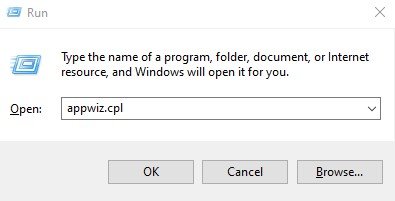
Press Windows + R to open the Run dialog.
Type: appwiz.cpl
Press OK.
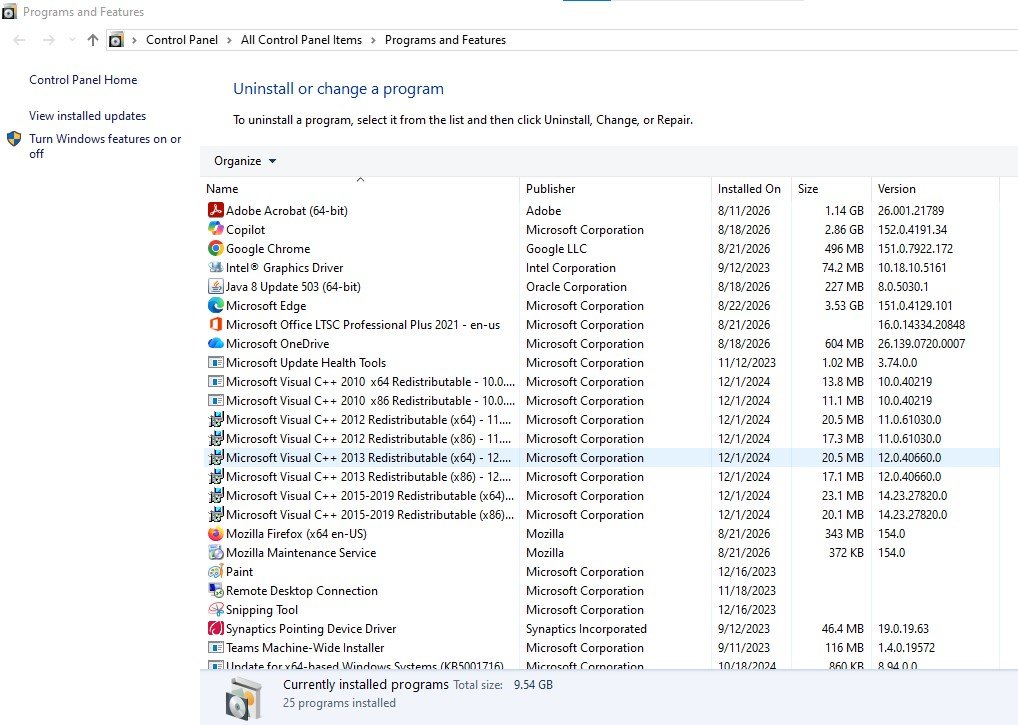
The Programs and Features window will open.
Find the program you no longer use.
Select it and click Uninstall.
Follow the instructions on the screen.
Important: Don’t uninstall a program simply because you don’t recognize its name. If you’re unsure what it does, search for the program first.
Avoid removing Windows components, hardware drivers, or software required by other programs.
ChatGPT can be a good assistant in this process.
Step 7: Restart Your Computer
After cleaning temporary files and reducing unnecessary startup programs, restart your computer.
A restart gives Windows an opportunity to:
Close background processes
Apply certain changes
Clear temporary system states
Start Windows again with fewer unnecessary applications
After restarting, see whether the computer feels more responsive.
What About Viruses and Malware?
If your computer is still unusually slow, you should consider the possibility of malware.
Other warning signs can include:
Unexpected pop-ups
Unknown applications appearing on the computer
Browser redirects
Strange extensions
Programs starting without your permission
Unusual advertisements
The computer becoming slow without an obvious reason
Windows already includes Microsoft Defender, so you do not necessarily need to install a third-party antivirus program simply because your computer is slow.
Run a security scan using Windows Security and investigate anything it detects.
If you have a specific reason to suspect malware, a reputable second-opinion scanner can also be useful.
Do not download security software from random websites or advertisements. Always use the software developer’s official website or a trusted source.
Do You Need to Delete the Prefetch Folder?
You may find online guides recommending that you open the Run dialog and type:
prefetch
and then delete everything inside the folder.
I would not recommend including this as a routine cleaning step for a beginner.
Windows manages the Prefetch data itself, and manually deleting it is unlikely to provide a meaningful performance improvement on a modern Windows computer.
The same applies to many “one-click PC cleaner” tricks found online. More cleaning does not automatically mean more speed.
What If Your Computer Is Still Slow?
If these steps do not make much difference, the problem may not be unnecessary files.
Other common causes include:
Too little RAM
If your computer has limited memory and you regularly run demanding applications, Windows may rely heavily on the disk, making the computer feel slow.
An old hard drive
Computers using traditional mechanical hard drives can feel much slower than computers using SSDs.
Upgrading from an HDD to an SSD can make a very noticeable difference on many older computers.
Too many browser tabs
A large number of browser tabs can consume substantial memory, particularly when several websites contain videos, web applications, or other demanding content.
Overheating
If a laptop becomes very hot, its processor may reduce its performance to control the temperature.
Make sure the computer’s air vents are not blocked and that dust is not preventing proper airflow.
Old hardware
If your computer is several years old, software cleanup may only provide a limited improvement. Hardware upgrades or replacing the machine may eventually be necessary.
Final Thoughts
You do not always need a third-party “PC booster” to improve a slow Windows computer.
Start with the tools Windows already provides:
Run Disk Cleanup with cleanmgr.
Remove unnecessary temporary files from %temp%.
Check the temp folder for additional temporary files.
Review unnecessary startup applications in Task Manager.
Close programs that are unnecessarily consuming system resources.
Restart the computer.
Run a malware/security scan if you have signs of an infection.
These steps are simple, free, and relatively safe when performed carefully.
However, remember that cleaning temporary files cannot magically turn old hardware into a new computer. If your PC remains slow after cleanup, look at RAM, storage, overheating, malware, and the age of the hardware.


![Read more about the article SEO vs AEO vs GEO: Difference Explained [2026]](https://thedigimag.com/wp-content/uploads/2026/07/Article-Banner-800x500px3-300x300.jpg)

